autoGMS logo
autoGMS logo
Pricing
About
Sign in
Book demo
autoGMS

Garage management software made for auto repair shops. Manage jobs, bays, technicians, bookings, and customers in one platform.

hi@myautogms.com

Dubai, UAE · London, UK

Features

Garage Software OverviewIndependent GaragesOnline BookingCRM & MarketingAccounting & FinanceBusiness AnalyticsBooking ManagementCustomer RecordsParts InventoryJob Cards & BaysTechnician WorkloadVAT Compliance

Guides & Tools

  • Profit Calculator
  • Management Guide
  • Best Garage Software
  • Booking & Scheduling Guide
  • Automotive Glossary
  • Health Check
  • Invoice Generator
  • US Vehicle Lookup
  • Product Demo
  • autoGMS vs Tekmetric

Shop Types

General Repair ShopsIndependent ShopsMobile Repair ShopsSpecialty Shops

Locations

DubaiAbu DhabiUAESaudi ArabiaKuwaitQatarBahrainOman

Company

AboutPricingBlogSecurityLogin

© 2026 autoGMS. All rights reserved.

PrivacyTerms
TwitterLinkedInMediumYouTube

Garage Estimate Software for Auto Repair Shops

Build a clear quote, send it for approval, and carry the accepted work into the booking or job without copying line items between screens.

Itemised labour and parts|Recorded customer decisions|Deposits tied to approved work

Know exactly what the customer approved

Open one record to see the vehicle, line items, latest version, customer decision, and deposit status.
See the Estimate Record

Price the work clearly

Show the customer each item, its price, tax, and the full estimated total.

Keep revisions separate

Create a new version without changing the estimate the customer already received.

Carry approved work forward

Use the accepted labour and parts in the booking, job, deposit, and invoice.

Create the estimate when the work becomes clear

Quote an enquiry before booking, price inspection findings, or ask for approval when the technician finds extra work on an active job.

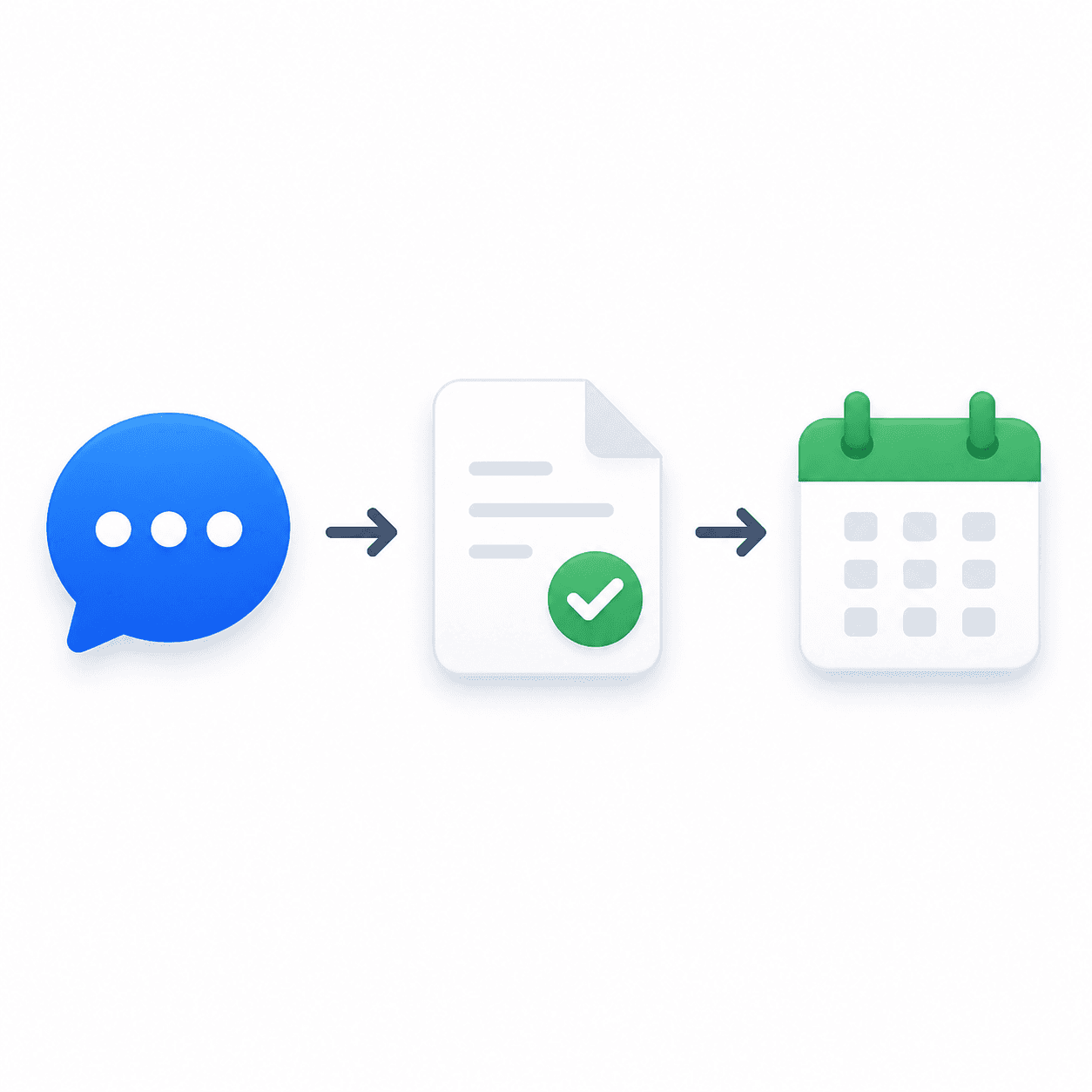
Customer enquiry

  1. 1Draft the estimate
  2. 2Send for approval
  3. 3Create the booking

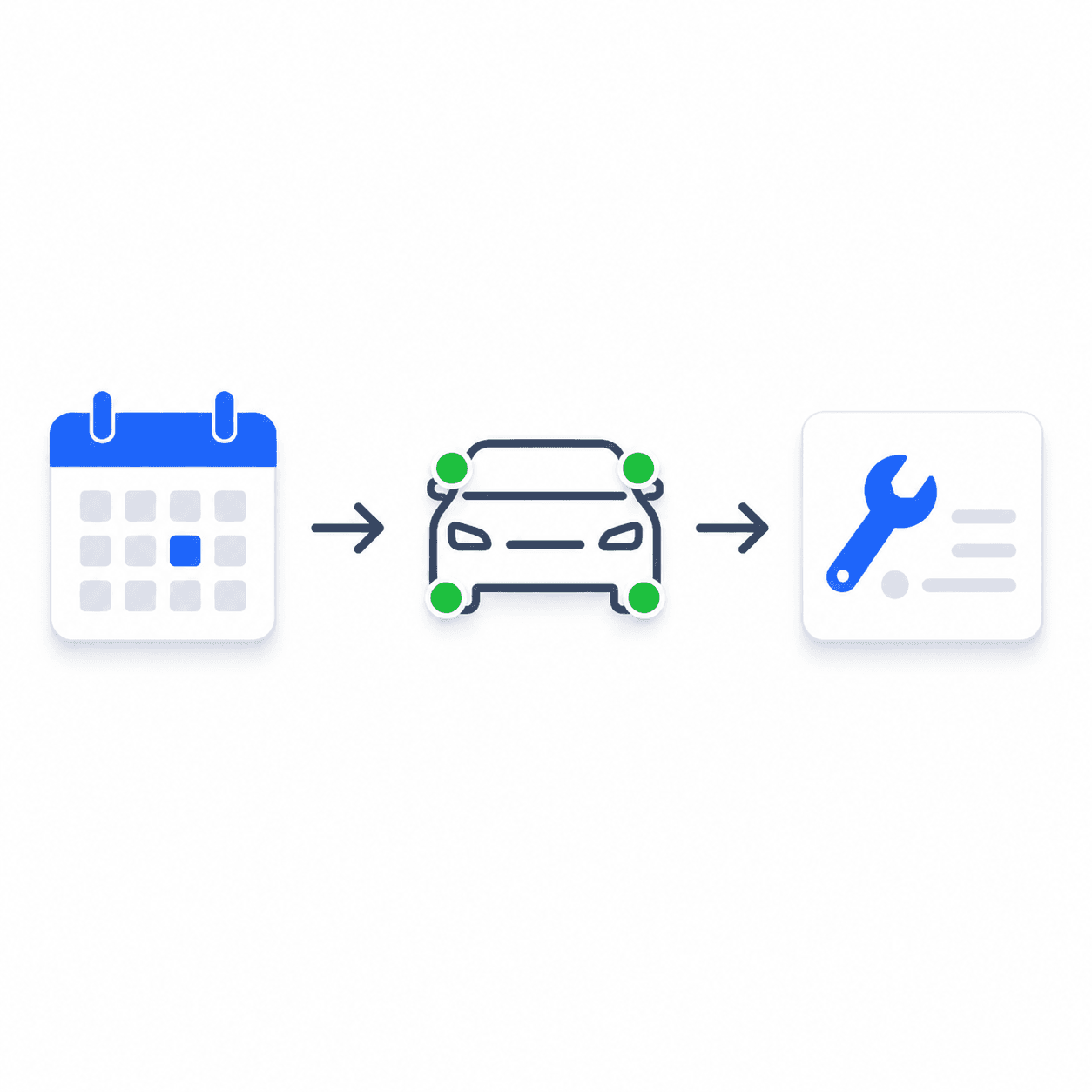
Booking and inspection

  1. 1Record the findings
  2. 2Price the work
  3. 3Get approval
  4. 4Update the job

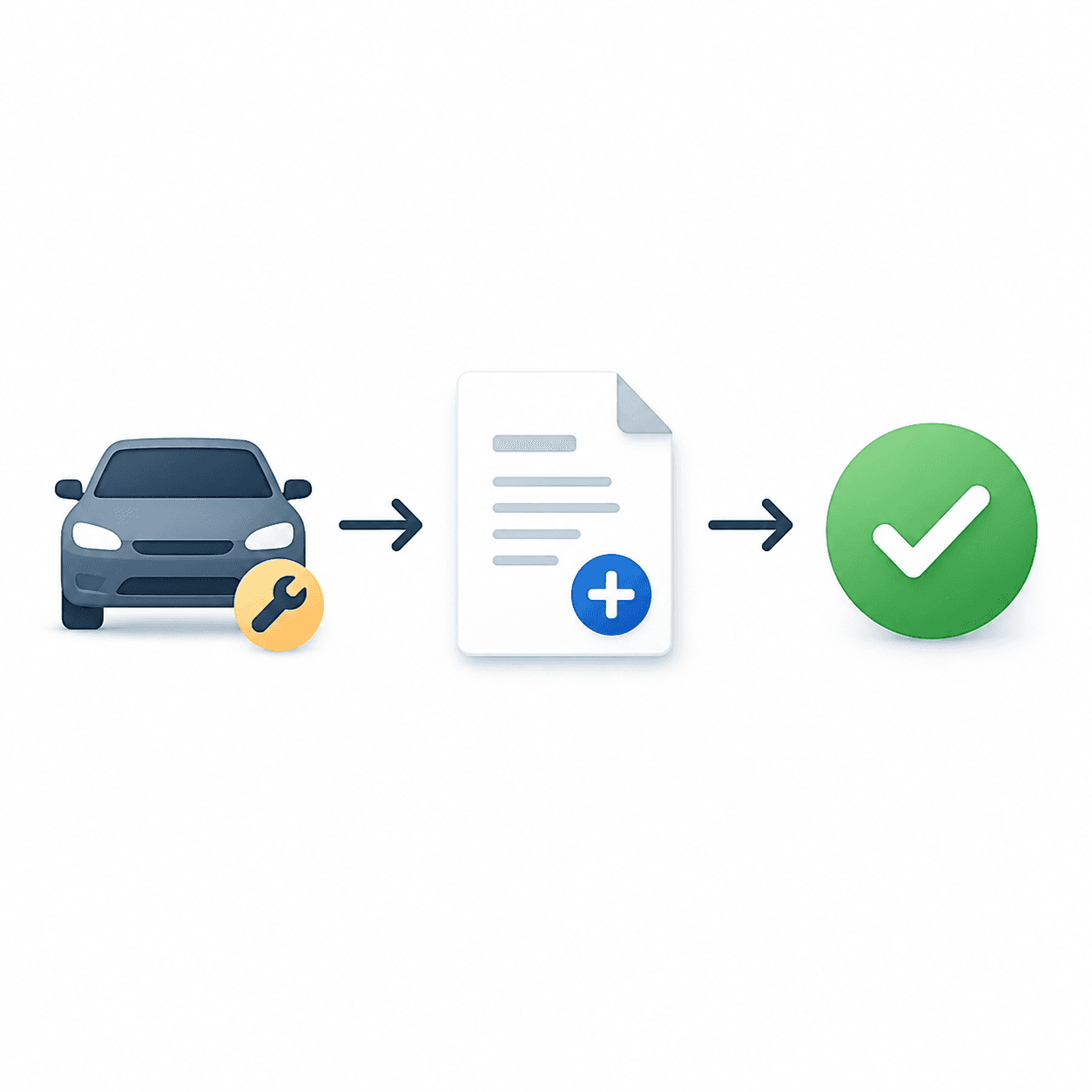
Active job

  1. 1Add the new issue
  2. 2Quote the extra work
  3. 3Get approval
  4. 4Update the job

A verbal yes is hard to prove and easy to misread

When prices, approvals, and payment notes live in different places, the team can start the wrong work or collect the wrong amount. autoGMS keeps them on the estimate record.
See the estimate workflow

A phone call or chat message does not show which line items the customer accepted.

One estimate record, carried through the job

The details below show how advisors price the work, record the decision, and give the workshop an approved scope.

01/Estimate workspace

Find the estimate you need

  • One working listKeep enquiry, inspection, and extra-work estimates together.
  • Useful status filtersFilter drafts, sent estimates, customer decisions, replaced versions, and expired quotes.
  • Customer and vehicle searchFind a record by estimate number, customer, vehicle, or status.
  • The next actionSend the estimate, create a revision, or open its booking from the same row.
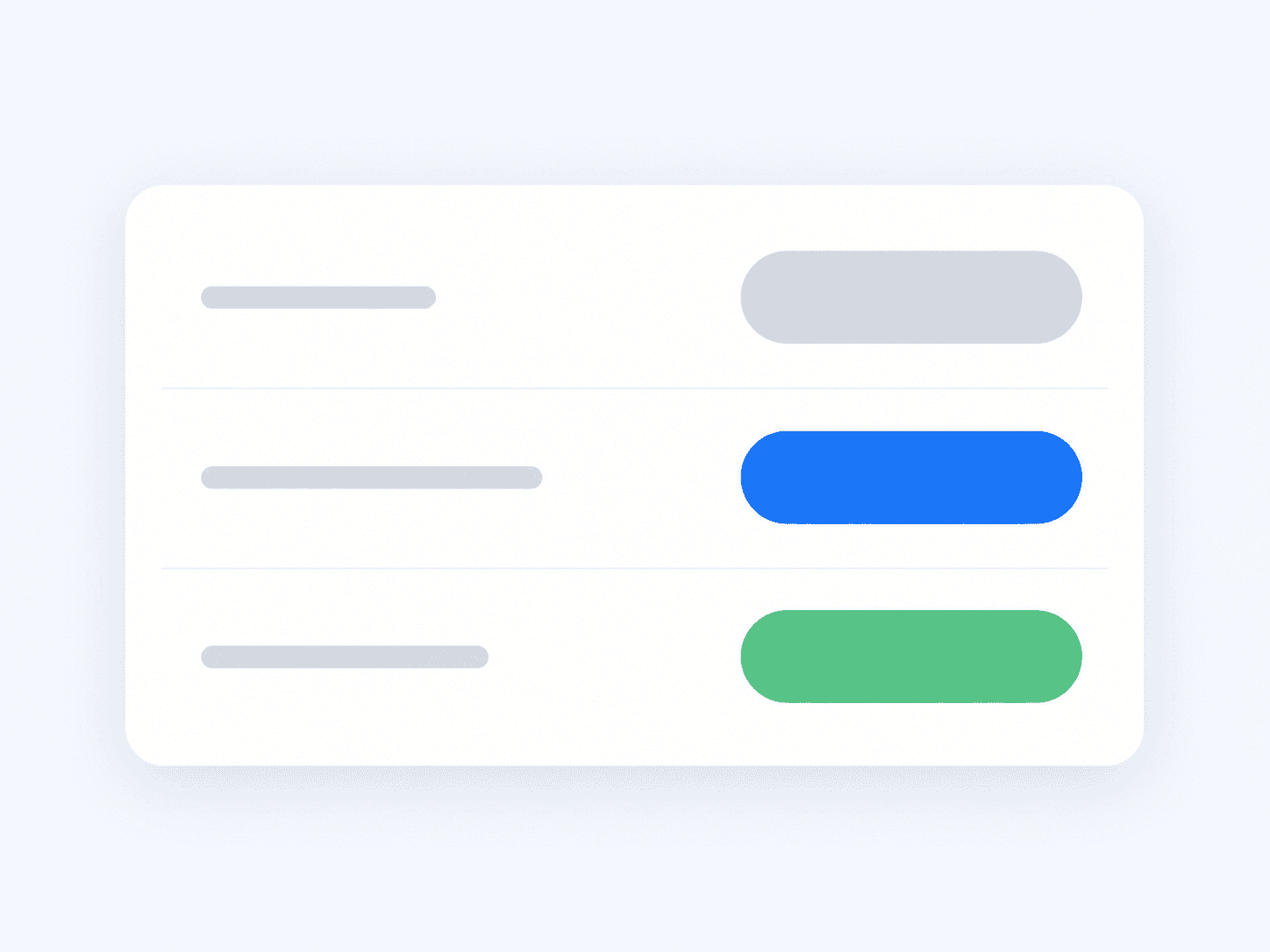
Estimate workspace showing enquiry, inspection, and additional-work estimate statuses
02/Clear pricing

Show the price without surprises

  • Itemised workList labour, parts, and outside services with a quantity, unit price, and line total.
  • The right vehicleAttach the estimate to the customer, vehicle, and booking when one already exists.
  • Notes with contextExplain the fault, the recommendation, and anything the customer should know before deciding.
  • A complete totalShow tax, the requested deposit, and the estimated total before work starts.
Garage estimate with customer, vehicle, labour, parts, notes, tax, and estimated total
03/Enquiry to booking

Turn an approved enquiry into a booking

  • A message ready for WhatsAppOpen a prepared message with the customer estimate link included.
  • A clear customer viewLet the customer review the recommended work, each price, and the total.
  • A recorded decisionStore the accepted line items and the time of approval on the estimate.
  • Continue into the bookingUse the approved labour and parts without typing them into the schedule again.
Customer enquiry estimate shared on WhatsApp and converted into a booking
04/Inspection to job

Keep inspection work tied to the job

  • Start from the bookingBuild the estimate after the technician records the inspection or diagnosis.
  • Keep the approved scopeShow the customer decision beside the vehicle and booked service.
  • Give the workshop a clear handoffAdd only authorised labour and parts to the job.
  • Keep the source recordThe team can trace the job back to the estimate and customer decision.
Inspection findings linked to an approved estimate, booking, and resulting job
05/Additional work

Quote extra work before starting it

  • Stay on the active jobCreate the extra-work estimate from the job already in progress.
  • Separate the new issueQuote the extra repair without mixing it into work the customer approved earlier.
  • Wait for a decisionKeep the new work off the job until the customer accepts it.
  • Update the job recordAdd the newly approved lines so the final job matches the customer decision.
Active job with an additional issue estimate and approved work added back to the job
06/Approval and balance

See what is approved and still owed

  • The customer decisionSee which items were accepted and when the decision was recorded.
  • The deposit statusCheck whether the deposit invoice has been created, paid, or applied.
  • The amount left to collectGive the front desk one balance instead of sending them through separate notes.
  • Connected to garage financeKeep the approved estimate, deposit, and final invoice tied to the same job.
Estimate approval status, payment status, and remaining balance

Make the decision easy for the customer

The customer sees the vehicle, recommended work, price, tax, and deposit request in one place. Their decision stays with the estimate for your team.

The right vehicle

The estimate identifies the customer, vehicle, and related booking.

Work in plain language

Notes explain what the garage found and why it recommends the repair.

Itemised pricing

Labour, parts, tax, deposit, and total appear in one customer view.

Line-item decisions

The customer can accept, decline, or defer individual recommendations.

A written record

The garage keeps the decision with the estimate instead of relying on a phone call.

Customer reviewing and approving a garage estimate on a phone

Want to see the estimate workflow?

Book a walkthrough and follow one estimate from the first line item to the customer decision, booking, job, and invoice.

Loading live demo scheduler...

Questions garages ask about estimates

How customer decisions, revisions, deposits, and booking-linked estimates work in autoGMS.

Can customers approve estimates online?+

Yes. Send the customer a link where they can review the line items and record a decision before work starts.

Can I revise an estimate after sending it?+

Yes. A revision creates a new version, while the estimate you sent remains in the record.

Can customers approve only part of the work?+

Yes. Customers can accept some line items and decline or defer others. autoGMS marks the estimate as partially approved.

Can I request a deposit before starting the job?+

Yes. Set a fixed amount or percentage on the estimate. After full approval, the garage can create and track the deposit invoice.

What happens when an estimate is approved?+

For a booking-linked estimate, the approved line items update the booking scope. The team can use that scope for the job and invoice.

Explore related features

View all features

Garage booking software

Smart appointment coordination that prevents double-bookings.

Learn more

Workshop bay management

Visual workshop control with drag-and-drop job cards.

Learn more

Garage finance reports

Track reports, VAT, expenses, deposits, and credit notes in one workflow.

Learn more
View all features