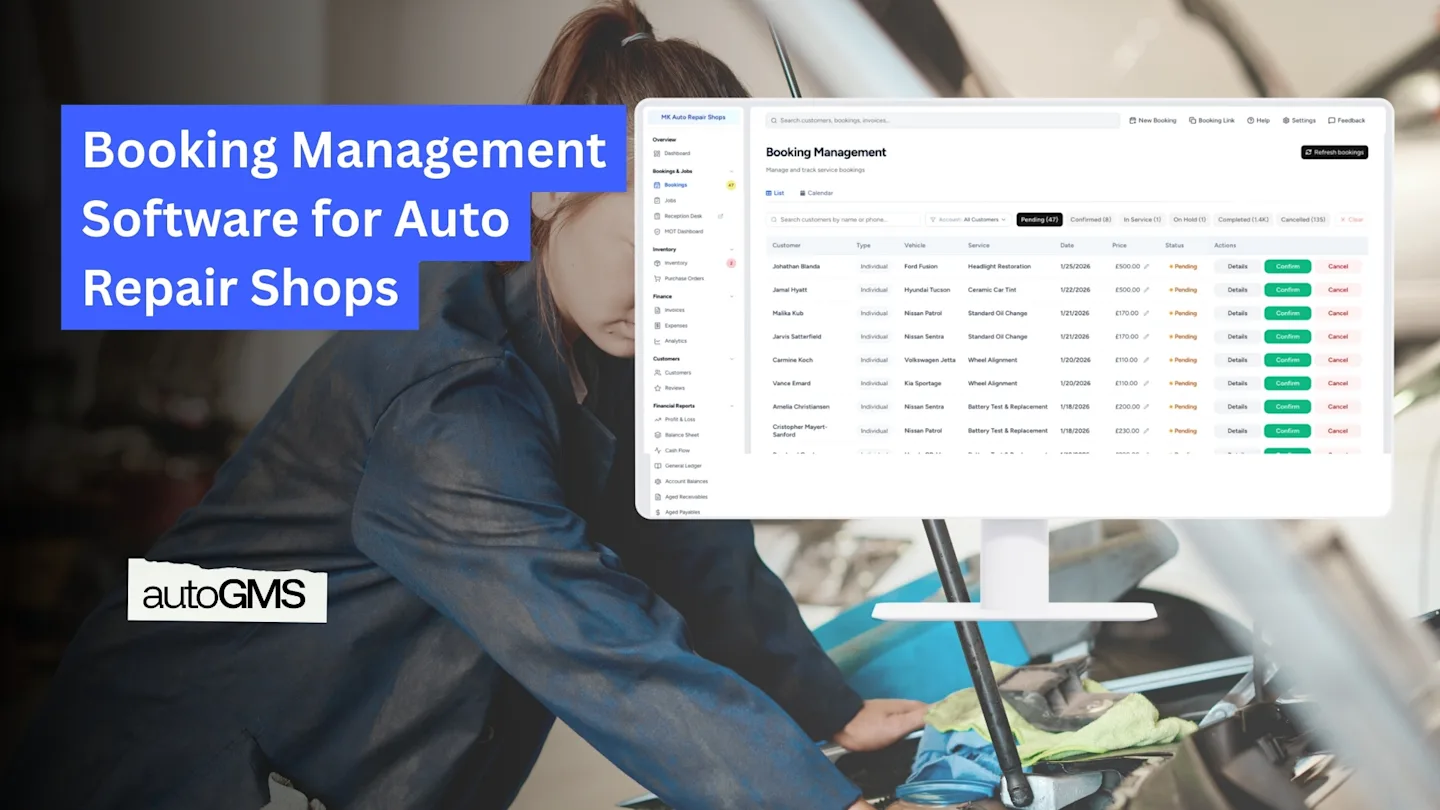
Booking Management Software for Auto Repair Shops
Learn how booking management software helps auto repair shops schedule jobs, reduce no-shows, manage customers, and improve daily workshop operations.
On this page
- Why Booking Management Matters in a Modern Workshop
- What Is the Booking Management Feature?
- How the Booking Lifecycle Works
- Step 1: Configure Your Booking Settings
- Same‑Day Bookings: Speed vs Control
- Auto‑Confirmation: Reducing Admin Work
- Geographic Restrictions: Protecting Your Time and Profit
- Creating a New Booking (Quick Booking Form)
- Daily Workflow: How to Manage Bookings in Practice
- Calendar View vs List View
- Tracking Services During the Day
- Customer Communication: Why Status Updates Matter
- Smart Cancellation Handling
- Common Booking Mistakes to Avoid
- Metrics That Show If Your Booking System Works
- FAQs
Running a modern repair shop is no longer just about fixing cars.
It is about managing time, capacity, customers, and cash flow with ease.
That is where an easy to user and powerful booking management software like autoGMS becomes one of the most important tools in your workshop.
In this guide, we explain how the booking management feature in autoGMS works, how to configure it correctly, and how to use it daily to increase efficiency, reduce no‑shows, and deliver a better customer experience.
Why Booking Management Matters in a Modern Workshop
Your booking system is not just a calendar.
It is the entry gate to your business.
Every appointment determines:
Which jobs you accept
How busy your technicians will be
Whether parts are available on time
How long customers wait
How predictable your revenue becomes
A well‑configured booking system acts like a digital service manager, organizing demand before it reaches your service bays.
What Is the Booking Management Feature?
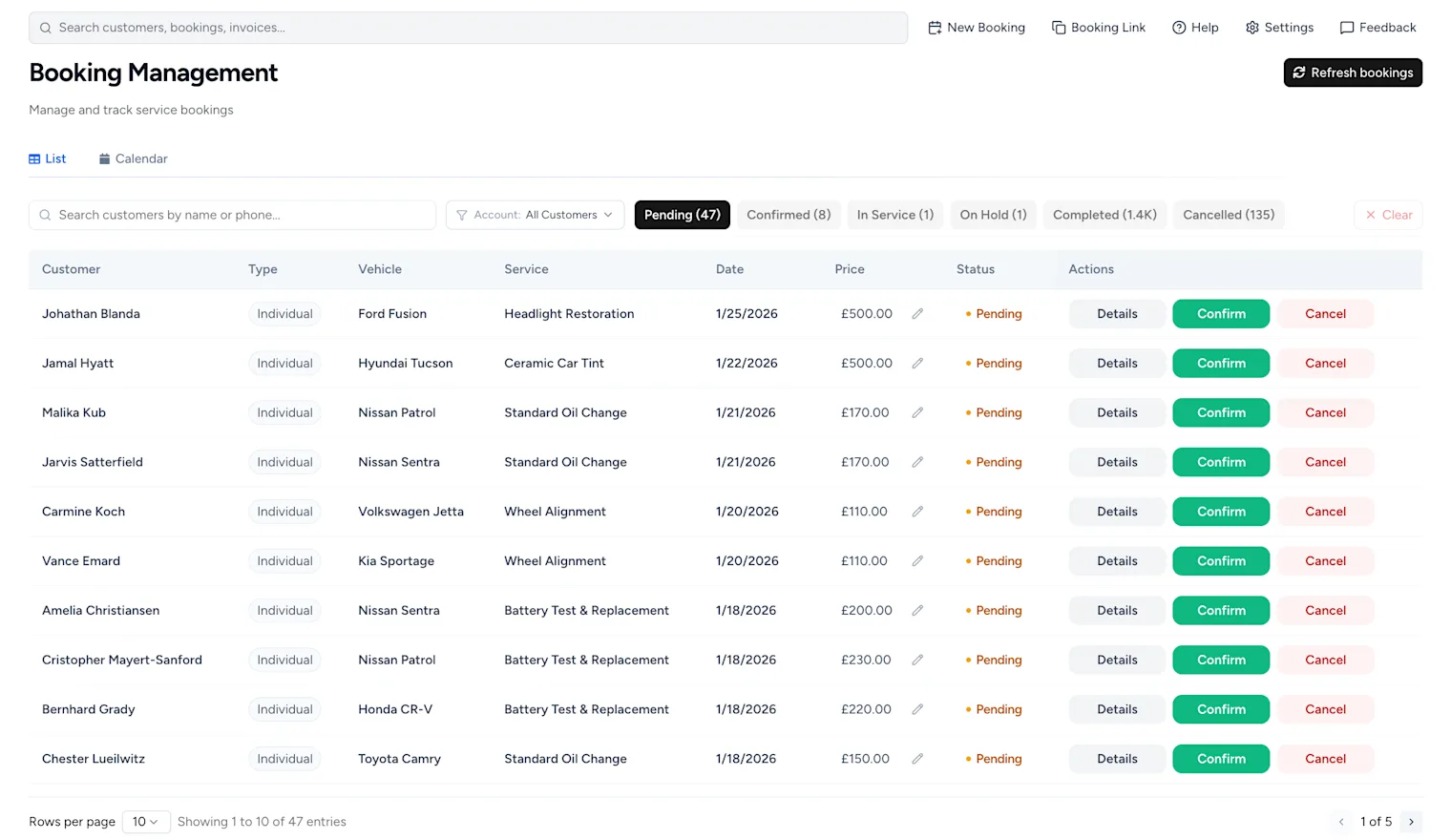
This booking management feature allows you to:
View and filter all service appointments
Track bookings by status
Search customers by name or phone number
Confirm or cancel appointments
Monitor service progress
Maintain a full booking history
It centralizes your entire service lifecycle in one dashboard.
How the Booking Lifecycle Works
Every booking moves through five main stages:
Pending: customer requested a service
Confirmed: appointment approved by the workshop or auto-confirmed
In Service: vehicle is currently being worked on
Completed: job finished
Cancelled: appointment cancelled by customer or staff
This structure allows both your team and your customers to always know what is happening.
Step 1: Configure Your Booking Settings
Before accepting customers, your booking rules must be defined.
Open Settings → Booking Settings to configure how appointments are handled.
These settings control:
Same-day booking availability
Auto-confirmation behavior
Business hours
Geographic restrictions
Notification channels
Same‑Day Bookings: Speed vs Control
Allowing customers to book for the same day is a strategic decision.
When Same‑Day Booking Works Well
Best for workshops offering:
Oil changes
Tire services
Battery replacement
Detailing
Quick inspections
Benefits:
Captures urgent customers
Increases daily volume
Improves cash flow
When Same‑Day Booking Causes Problems
Not recommended for:
Engine repairs
Diagnostics
Transmission work
Body repair
Risks:
Technician overload
Missing parts
Delays
Stress at reception
Best Practice
If your team feels overwhelmed, disable same‑day booking and require at least 24 hours notice.
This single setting often dramatically improves workshop stability.
Auto‑Confirmation: Reducing Admin Work
Manually confirming every booking slows your front desk and frustrates customers.
Auto‑confirmation solves this by approving appointments instantly.
Benefits
Customers receive immediate confirmation
No manual calls or emails
Fewer abandoned bookings
Higher trust and professionalism
When to Enable It
Stable technician schedules
Defined service durations
Predictable daily capacity
When to Avoid It
Small teams
Unstable staffing
Complex repairs
Seasonal overload
Recommended Setup
Combine auto‑confirmation with:
Business hour limits
Daily booking caps
Local‑customer restrictions
Geographic Restrictions: Protecting Your Time and Profit
If you offer vehicle pickup, delivery, or mobile services, distance becomes a hidden cost.
Long travel for low‑value services quickly reduces profitability.
Why Local‑Only Auto‑Confirmation Helps
Reduces fuel expenses
Saves technician time
Allows more daily jobs
Prioritizes repeat customers
Example
Automatically confirm only customers within 15 km for oil changes or battery services.
Long‑distance customers can still request bookings, but staff manually review them.
Creating a New Booking (Quick Booking Form)
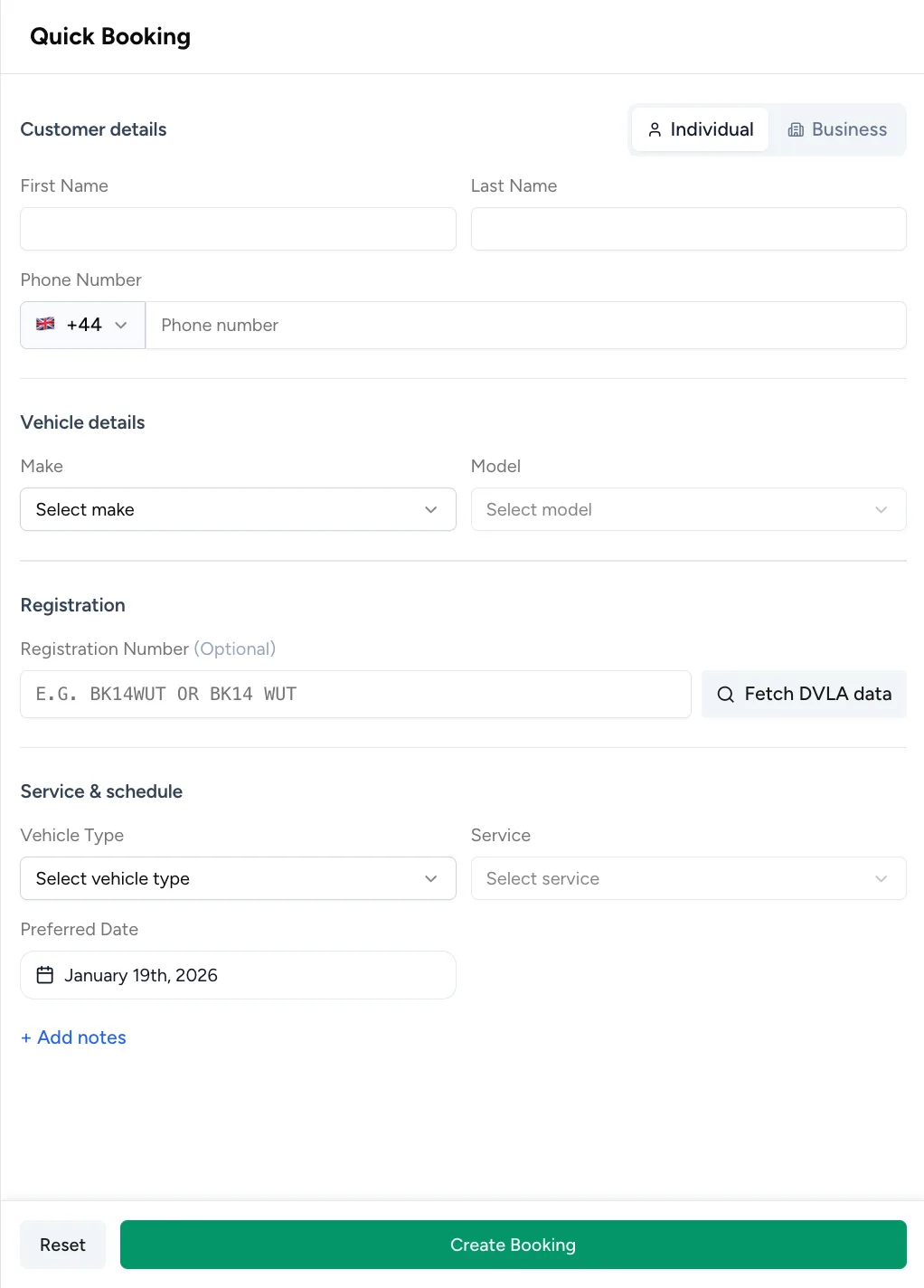
This form appears when you click New Booking.
It allows staff to create appointments in under one minute by filling in:
Customer name and phone number
Vehicle make and model
Registration number (optional, with DVLA lookup)
Vehicle type
Service type
Preferred date
Internal notes
After clicking Create Booking, the appointment immediately appears in both the list view and calendar view.
Daily Workflow: How to Manage Bookings in Practice
This shows how staff review, confirm, or cancel incoming bookings.
1. Review Pending Bookings
Open the Pending tab each morning.
Check:
Customer details
Vehicle information
Service type
Requested date
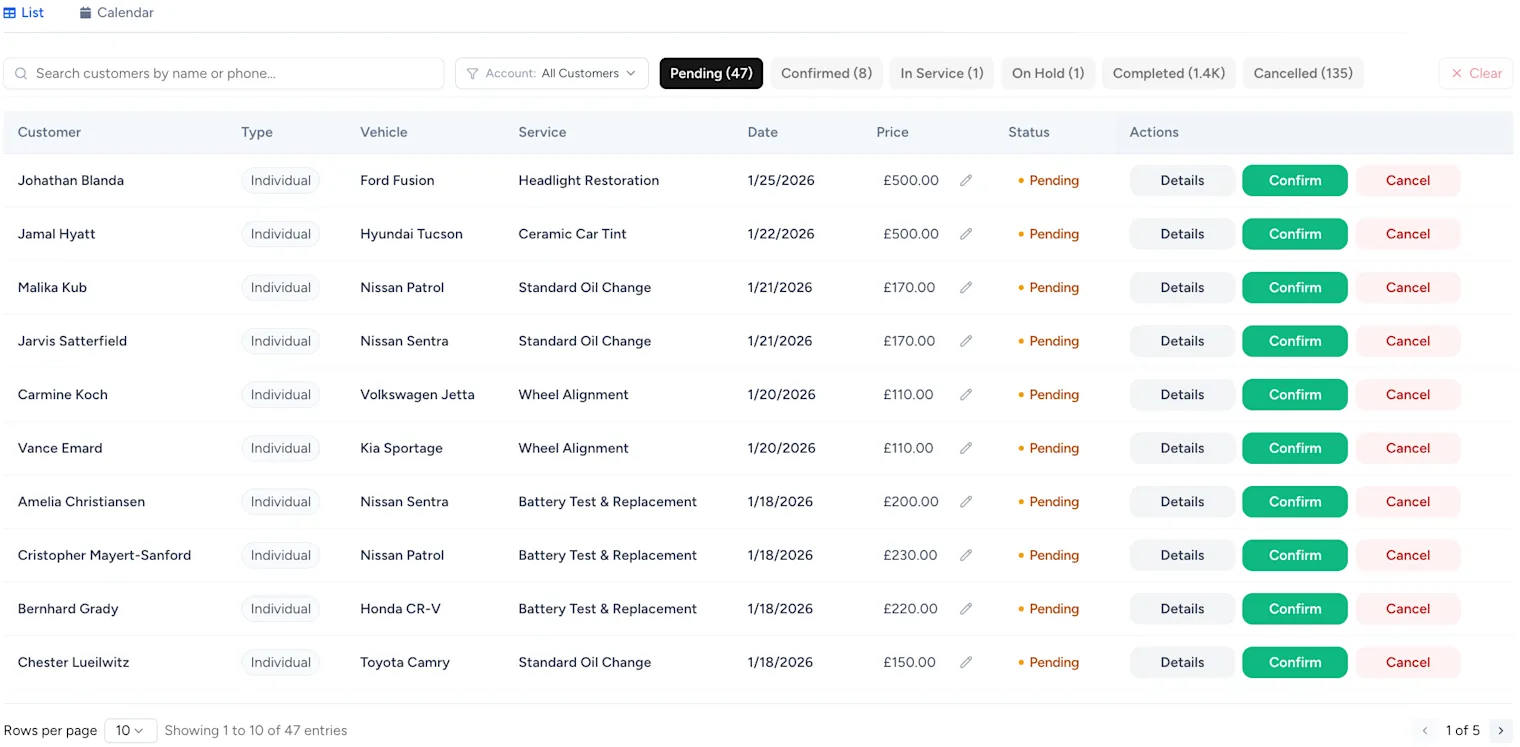
This shows how staff review, confirm, or cancel incoming bookings.
2. Confirm or Cancel
Click Confirm to approve
Click Cancel to decline
Add internal notes when needed.
3. Prepare for Service Day
For confirmed bookings:
Assign technicians
Reserve service bays
Verify parts availability
Plan workload distribution
Calendar View vs List View
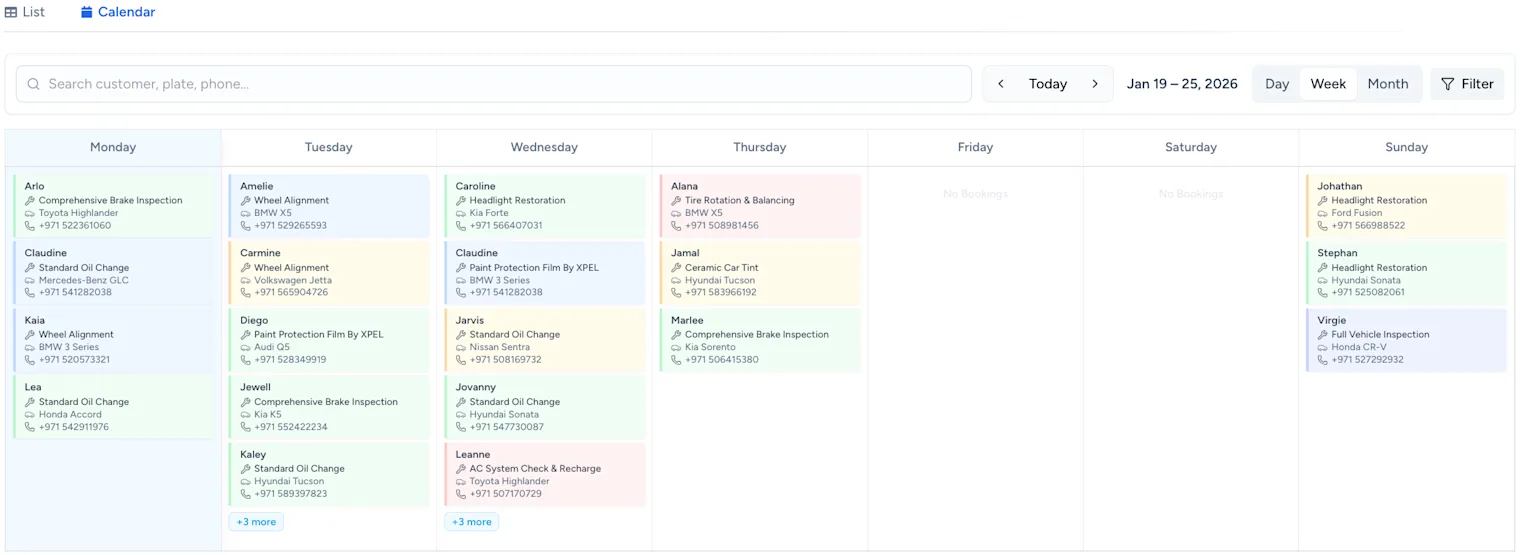
The calendar view is ideal for:
Visualizing technician workload
Identifying busy days
Spotting gaps in capacity
Planning staff schedules
The list view is better for:
Processing bookings quickly
Filtering by status
Searching customers
Managing confirmations and cancellations
Users can freely switch between both views depending on their role.
Tracking Services During the Day
When the vehicle arrives:
→ Set status to In Service
If delays occur:
→ Set status to On Hold
After completion:
→ Set status to Completed
This creates real-time visibility for staff and customers.
Customer Communication: Why Status Updates Matter
Silence creates anxiety.
Clear updates create trust.
Recommended Notification Flow
Confirmed: appointment approved
In Service: work started
On Hold: delay or parts waiting
Completed: ready for pickup
Cancelled: booking cancelled with rebooking link
Why WhatsApp Works Best
Highest open rate
Immediate delivery
Customers respond faster
Use email as a backup channel.
Smart Cancellation Handling
Cancellations are unavoidable, handle them professionally:
Cancel the booking
Send automated message
Include rebooking link
Add internal reason if needed
This preserves customer goodwill and often recovers the job later.
Common Booking Mistakes to Avoid
Allowing same‑day bookings without capacity planning
Auto‑confirming without geographic limits
Ignoring pending bookings
Overloading technicians
Failing to notify customers of delays
Metrics That Show If Your Booking System Works
Track these monthly:
Pending → Confirmed conversion rate
No‑show percentage
Average service time
Booking lead time
Repeat booking rate
These numbers reveal operational health more accurately than revenue alone.
Final Thoughts
A strong booking management system turns chaos into structure.
It filters demand, protects your team, improves customer satisfaction, and stabilizes revenue.
When configured correctly, your booking feature becomes a silent operations manager working 24/7.
If you want to see how this workflow works in practice, explore the booking management dashboard in autoGMS and start optimizing your service lifecycle today.
Frequently asked questions
What is booking management software for auto repair shops?
Booking management software helps garages schedule appointments, manage customer details, track service status, and organize technician workloads from one dashboard. It replaces manual calendars and phone-based scheduling with an automated system that improves accuracy and efficiency.
Can I create bookings manually for walk-in or phone customers?
Yes. With the Quick Booking feature, staff can create appointments in seconds by entering customer details, vehicle information, service type, and preferred date. The booking then appears instantly in both the list view and calendar view.
What is the difference between calendar view and list view?
Calendar view shows bookings visually by day or week, making it easier to plan workload and technician schedules. List view displays bookings in a table format, which is better for searching customers, confirming appointments, and managing booking statuses.