How to Use the Profit & Loss Report in AutoGMS
Learn how to use the Profit & Loss report in AutoGMS to track revenue, COGS, expenses, and net profit for better garage financial control.
Running a successful garage is not just about completing jobs. It’s about understanding whether those jobs are actually making you money.
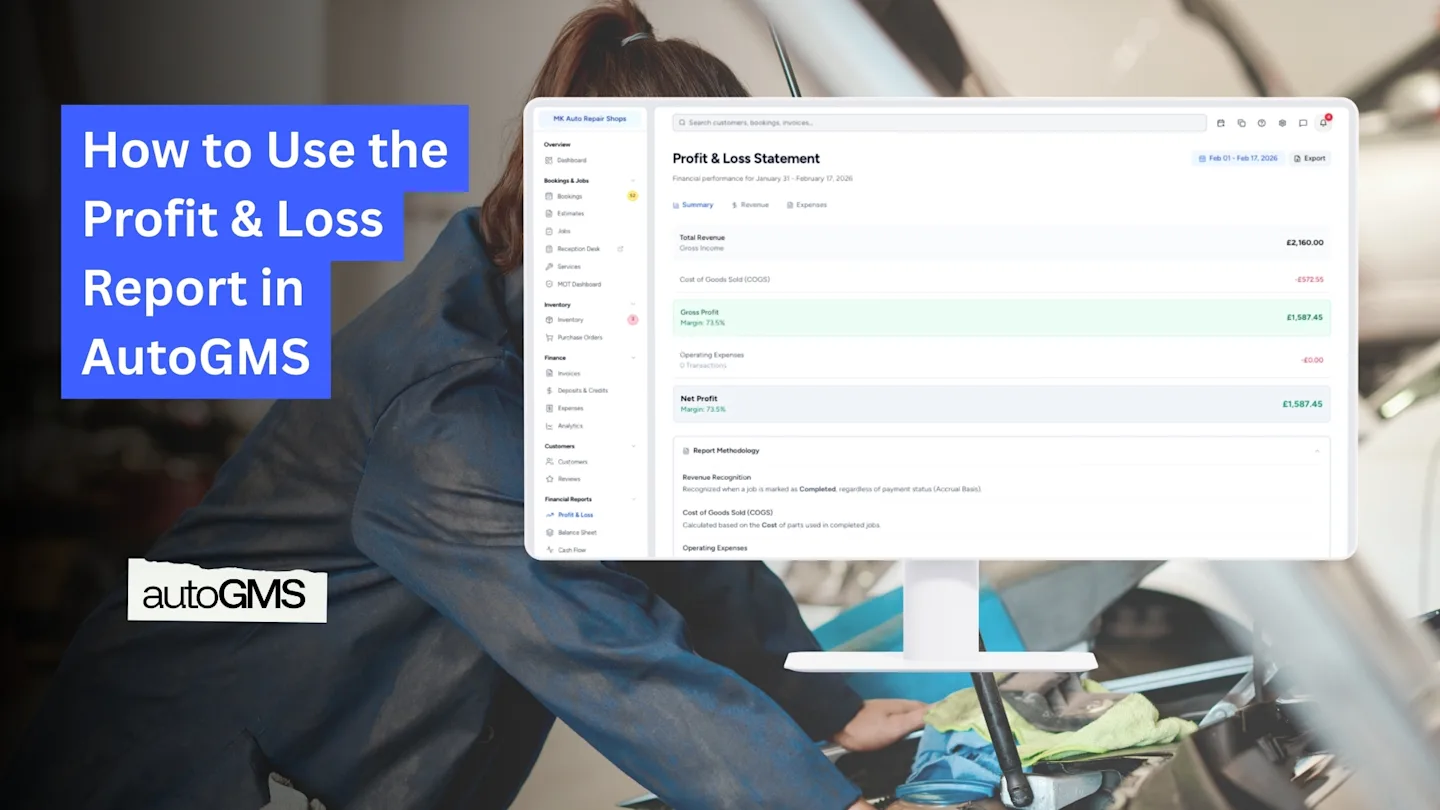
The Profit & Loss (P&L) Report in AutoGMS gives you a clear financial snapshot of your workshop’s performance over a selected period. It shows:
How much revenue your garage generated
The cost of goods sold (COGS)
Your gross profit
Operating expenses
Your final net profit
Instead of guessing whether the business is profitable, the P&L report gives you real numbers based on completed jobs and recorded expenses inside AutoGMS.
Understanding the Three Tabs
The Profit & Loss report in AutoGMS is divided into three main tabs: Summary, Revenue, and Expenses. Each tab gives you a different level of financial insight.
1. Summary Tab
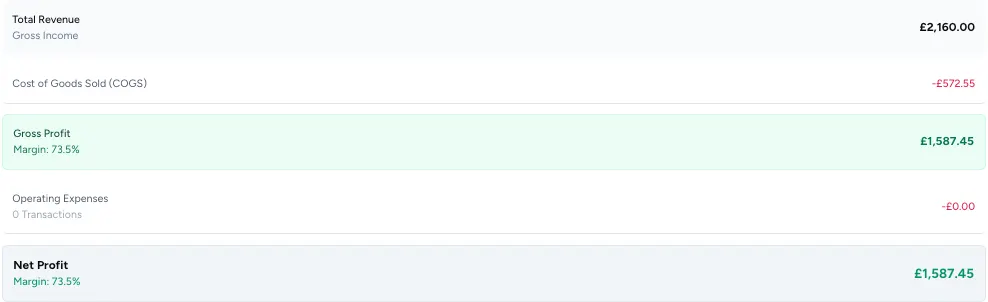
The Summary tab gives you a quick overview of your garage’s financial performance for the selected date range.
Here you will see:
Total Revenue – The total income generated from completed jobs.
Cost of Goods Sold (COGS) – The cost of parts used in completed jobs.
Gross Profit – Revenue minus COGS.
Operating Expenses – Recorded business expenses (excluding COGS).
Net Profit – What remains after all costs are deducted.
Margin % – Your profitability percentage.
This tab is ideal for a quick health check. If you only review one section weekly or monthly, this should be it.
2. Revenue Tab
The Revenue tab breaks down where your income is coming from.
Typically, it includes:
Service Revenue – Income from labour and services on completed jobs.
Parts Revenue – Income from parts sold (selling price).
You can also see:
Total amounts
Percentage contribution to total revenue
Revenue is recognized when a job is marked as Completed, not when payment is received. This follows an accrual-based approach.

3. Expenses Tab
The Expenses tab shows your recorded operating expenses.
Important notes:
Expenses are recognized based on the Expense Date (bill date).
COGS is not shown here to avoid double counting.
If no expenses appear, it may mean none were recorded during the selected date range.
This tab helps you monitor overhead costs and control spending.

Final Thoughts on Using the Profit & Loss Report
The Profit & Loss report in AutoGMS is more than just numbers on a screen. It is a decision-making tool.
By reviewing your P&L regularly, you can:
See whether your garage is truly profitable
Identify if parts costs are too high
Monitor operating expenses
Make informed pricing and cost-control decisions
If you are not reviewing your Profit & Loss report at least once a month, you are running your business without a clear financial picture.
Make it a habit. Open it. Review it. Adjust accordingly.
That is how sustainable garages grow.
Frequently asked questions
Does the Profit & Loss report use cash or accrual basis?
AutoGMS follows an accrual-based logic. Revenue is recognized when a job is marked as completed, not when payment is received. Expenses are recognized based on their recorded expense date.
Why don’t I see any expenses in my report?
If no expenses appear, it likely means no expenses were recorded during the selected date range. Make sure expenses are added correctly and that the date range is set properly.
What is included in Cost of Goods Sold (COGS)?
COGS includes the purchase cost of parts used in completed jobs. It does not include operating expenses such as rent, utilities, or salaries.
Why is my Net Profit the same as my Gross Profit?
This usually means no operating expenses were recorded during the selected period. Since Net Profit equals Gross Profit minus Operating Expenses, the two figures will match if expenses are zero.